Contract Negotiation
The approval of the MCD Master Contract Document is able to undergo many paths to achieve its final status.
Prior to establishing the Final MCD, the MCD can be:
-
negotiated with the Funded Organisation including collaborative editing
AND/OR
-
submitted to the other department users for approval.
Electronic signatures may also be integrated into the process of approving the final version of the MCD.
Warning Once contract negotiation is applied to an active contract, this decision is non-reversible (i.e. it applies also to the contract variation process).
Points for consideration in a decision to incorporate the negotiation process into the creation/approval of a final version of an MCD.
-
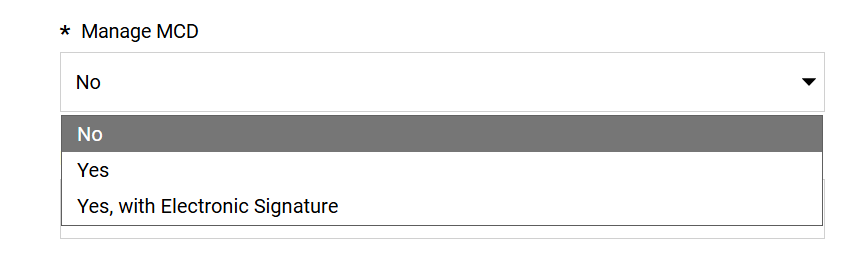
P2i Senior User ensures the contract's Details tab> Settings page > Manage MCD field has the value of either Yes orYes, with Electronic Signature” - refer to Manage MCD
Warning When Yes with Electronic Signature is selected, the Contents Management tab > Additional Information page > Type of Signature field MUST contain the value of Electronic Signatures (i.e. the two fields and their values MUST align)
-
Agreement settings for the MCD
Master Contract Document must be configured. (refer to MCD Agreement Settings section)Example The fields values would be:
Require Main Contractor MCD Agreement = Yes
Require Clause Approval = No
Approval Required Prior to sharing MCD with Main Contractor = No
The fields Manage Main Contractor MCD Response Deadline and Days for Main Contractor to Respond are set following business area processes.
-
A contract proposal must be created and (if applicable) internally approved and then shared to the Main Contractor (i.e. the Funded Organisation)
-
determine if annexes are applicable for the MCD
-
the MCD will become locked, meaning other documents cannot be easily bundled with the MCD
-
annexes allows upload of additional files to form part of the total contract package
-
when annexes are included and managed as part of the MCD, each annex is available to the Main Contractor (i.e. the Funded Organisation)
Note if the MCD is to be eSigned ensure Annex files must be valid types supported by Docusign eSignature
TABLE: Valid file type and the file extensions Document
.doc, .docm, .docx, .dot, .dotm, .dotx, .htm, .html, .msg, .pdf, .rtf, .txt, .wpd, .xhtml, .xps
Image
.bmp, .gif, .heic, .jpg, .jpeg, .png, .tif, .tiff
Presentation
.pot, .potx, .pps, .ppt, .pptm, .pptx
Spreadsheet
.csv, .xls, .xlsm, .xlsx
Tip Docusign does not support files with password security enabled. To send a file with password security, remove the security setting before uploading the file as an annex.
-
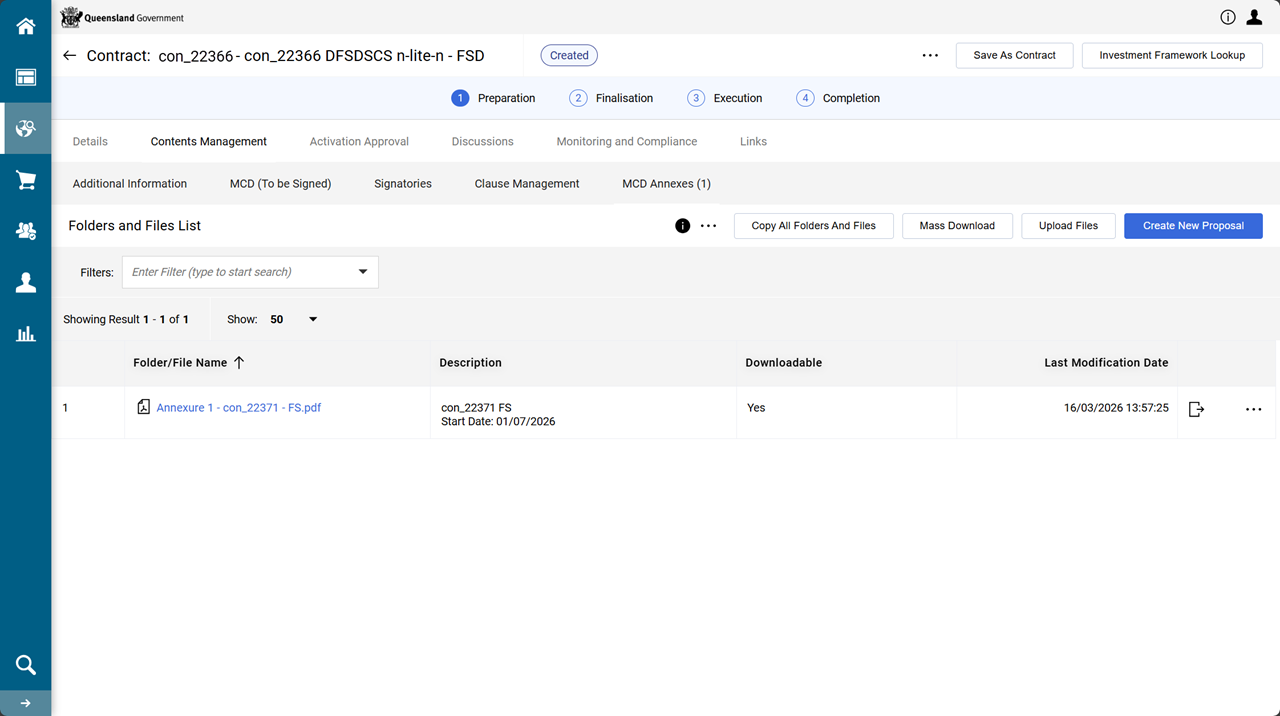
annexes are located in the contract's Contents Management tab > MCD Annexes page
-
-
The Main Contractor (i.e. the Funded Organisation) users involved in the contract negotiation must be added to the contract's contact list (Details tab > Settings page > Contacts section)
Note This process requires due diligence when assigning user contacts to the contract as this user would need the correct user rights. The user would be able to see the contract contents as they become associated with the contract. This may not be the desired outcome the Funded Organisation intends for this user.
-
Many Funded Organisation users listed in the contract's contacts may have access to review the MCD but it takes only one user to approve or reject the MCD proposal.
Manage the contract's contacts
The Funded Organisation users listed within the contract's Details tab > Settings page > Contacts section will be able to see the contract's MCD.
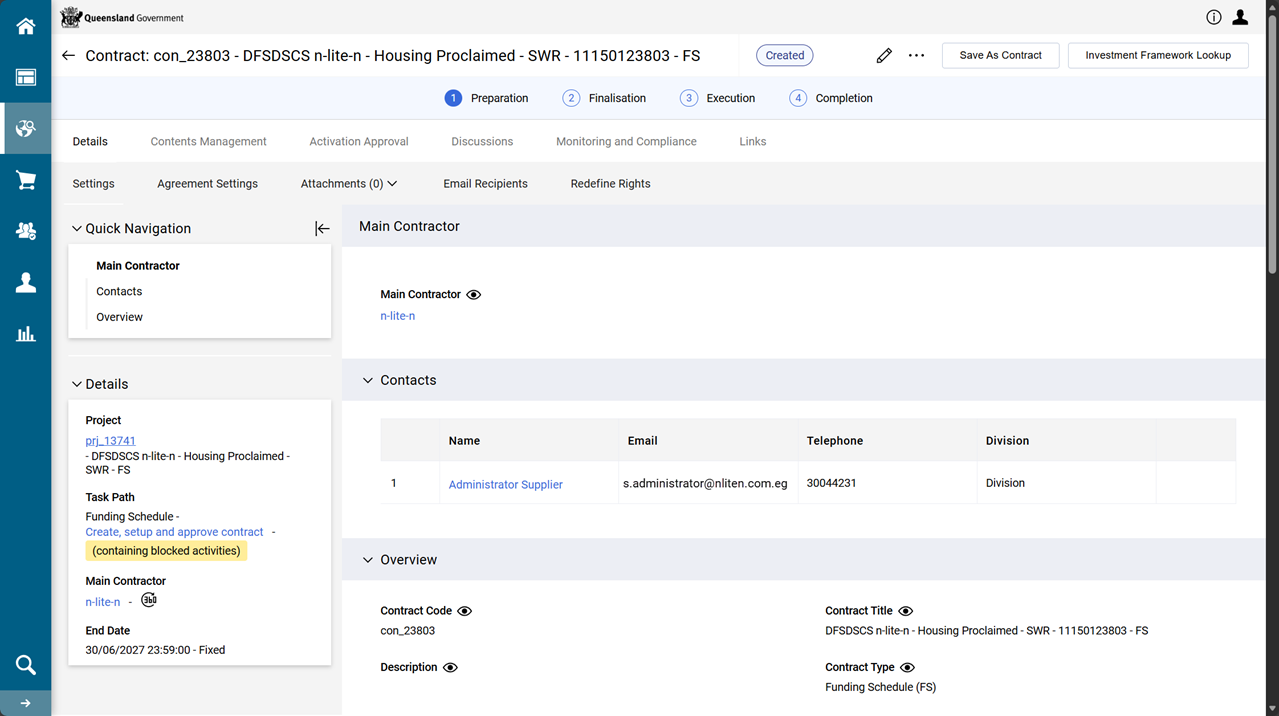
There can be as many contacts as needed for the purpose of contract negotiation.
Add a contact
-
From the Details tab > Settings page, click
 .
.
-
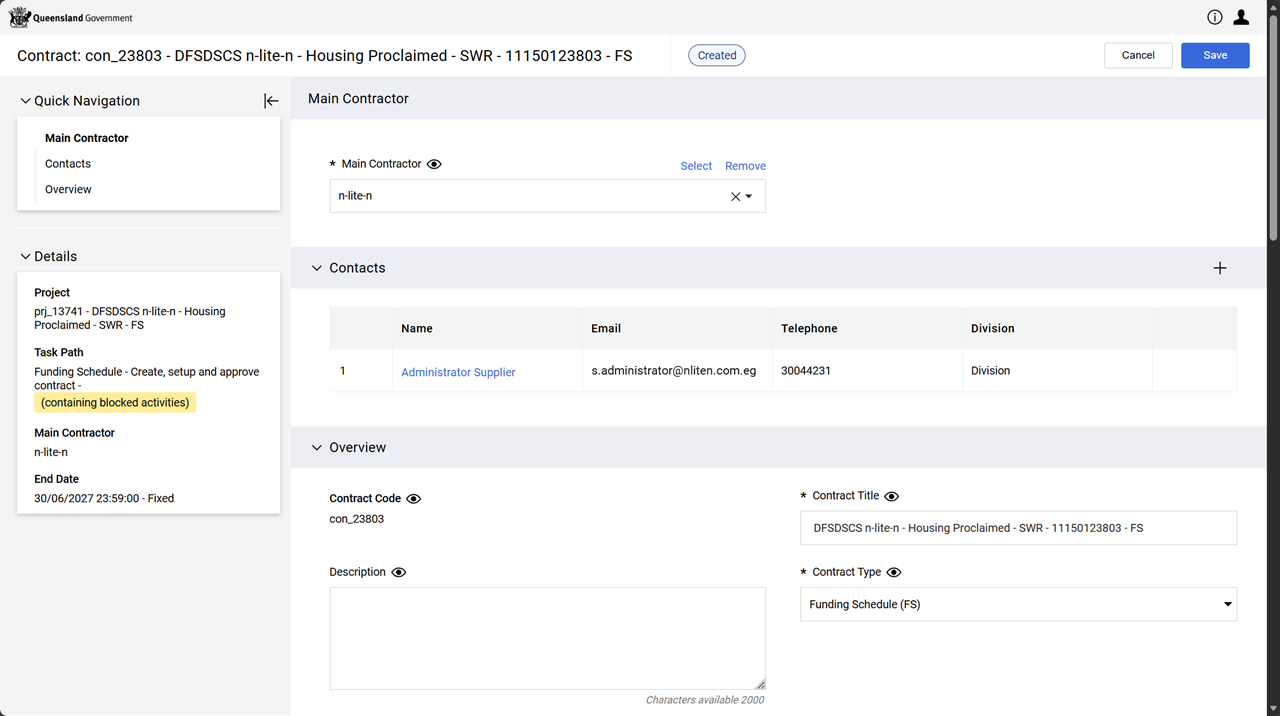
Click + in Contacts section.
-
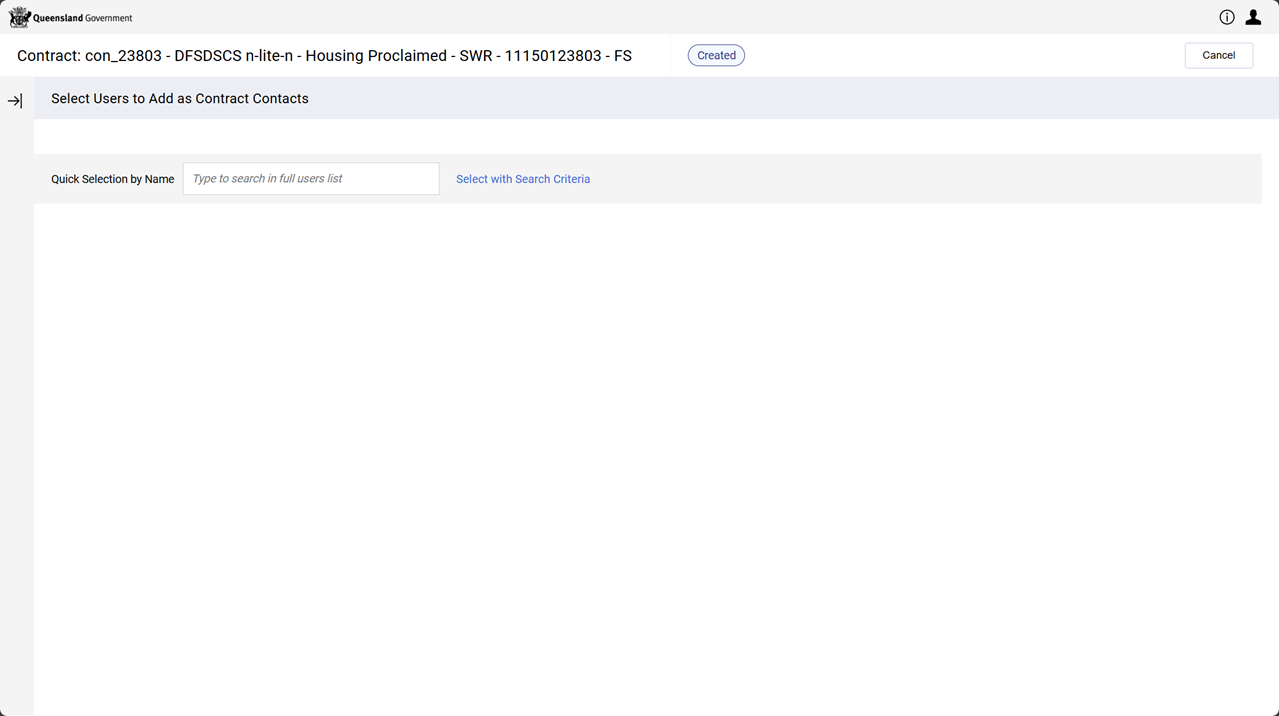
Click Select with Search Criteria hyperlink.
-
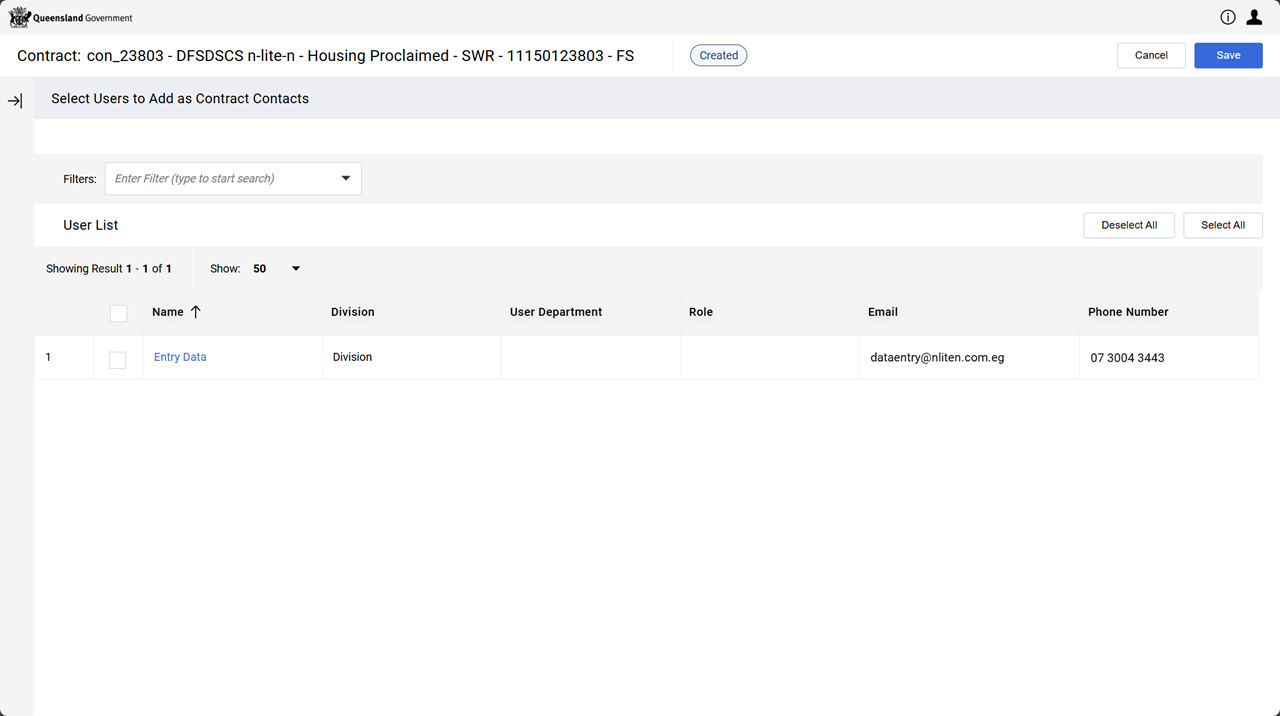
Click checkbox for each user to add.
-
Click Save.
The Funded Organisation user is added to the Contacts.